PayPal Checkout Is Here: Time to Move On From PayPal Standard
Cart Viper 4.5.0 includes a brand new PayPal payment provider, PayPal Checkout. It is built on PayPal’s current Orders v2 REST API and replaces the PayPal Standard integration that Cart Viper stores have used for many years.
If your store takes PayPal payments, this one matters. Below we explain why you should switch, what you get from it, and how to set it up step by step.
Why you need to switch
PayPal is retiring Website Payments Standard (also known as PayPal Standard or WPS), the integration behind Cart Viper’s original PayPal provider. It has been deprecated since January 2026 and only receives critical security fixes. PayPal has said it may switch it off at any time after 1 January 2027.
When that happens, stores still using PayPal Standard will stop taking PayPal payments. Switching now, while you can test calmly, is much better than finding out from a customer in January.
Upgrading won’t change anything until you’re ready
We know an unexpected change at checkout is the last thing anyone wants, so we’ve been careful here:
- Existing stores keep using PayPal Standard after upgrading to 4.5.0. Nothing changes until you choose to switch.
- New stores use PayPal Checkout by default.
- Your PayPal Standard settings are kept when you switch, so you can switch back at any time.
- Orders placed before the switch are still handled. If PayPal later sends an update for one of them (a refund, a reversal, or a pending payment clearing), Cart Viper still processes it through the old provider.
What’s better about PayPal Checkout
It isn’t just a like-for-like replacement. Moving to the REST API let us fix some long-standing problems and add a few things merchants have been asking for.
Orders are confirmed even if the customer never comes back. With PayPal Standard, some customers pay and then close the browser before returning to your store. PayPal Checkout uses webhooks: PayPal tells Cart Viper about the payment directly, so the order is captured and marked paid either way. If both arrive together, the customer still gets only one confirmation email.
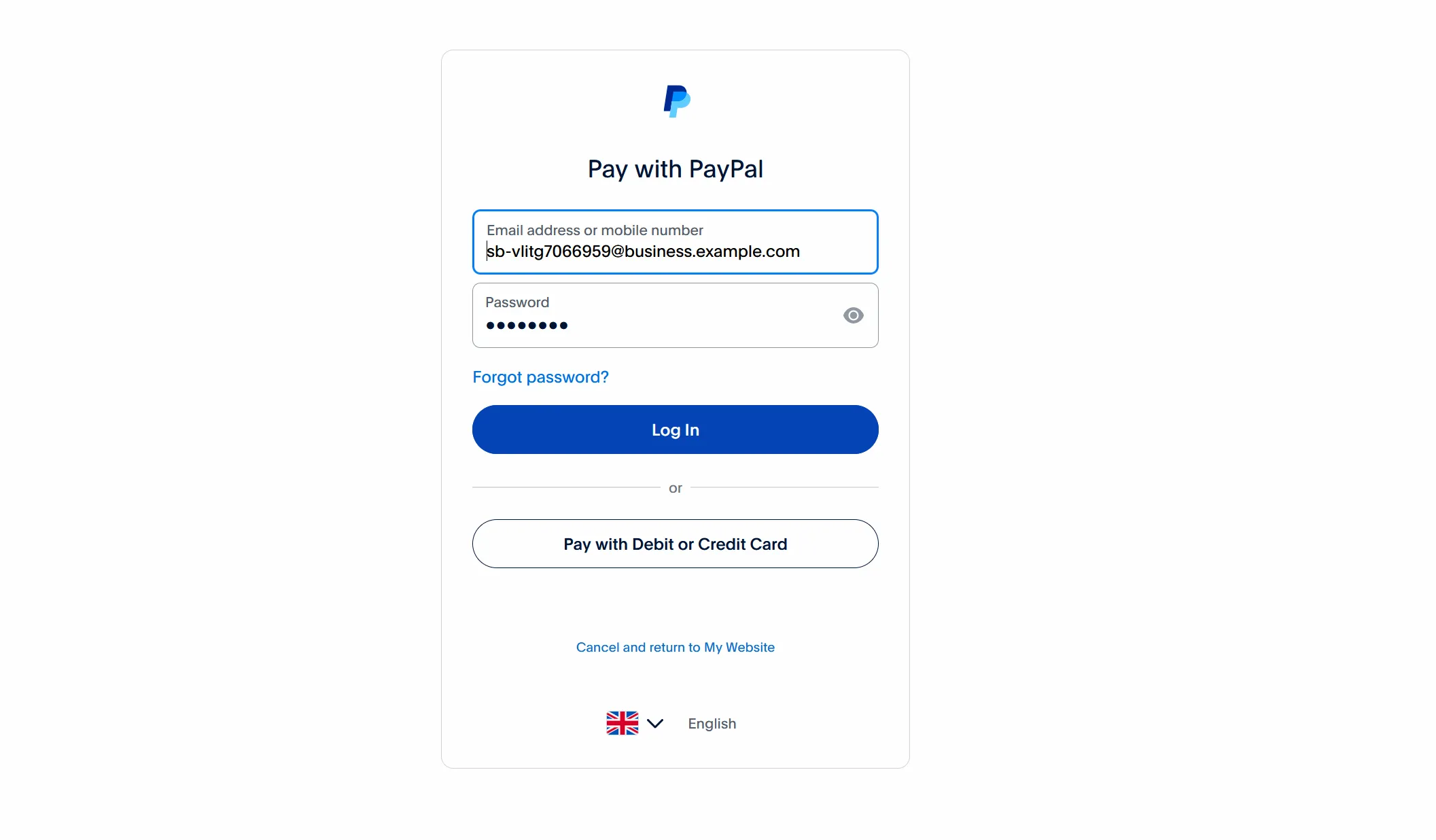
Customers can pay by card without a PayPal account. Turn on Prefer Card Checkout and PayPal opens its “Pay with debit or credit card” page instead of the login page. That’s one less reason for a customer without a PayPal account to abandon their cart.
Refunds made in PayPal update your store. Refund an order in full from your PayPal account and the Cart Viper order is cancelled automatically. A partial refund sends you an email so you can decide what to do.
A clearer order on the PayPal page. Customers see each item with its selected options, plus shipping, tax, handling and discounts as separate lines, all adding up to exactly the order total in your store. The old limit of seven product options is gone.
A declined card isn’t the end of the order. If PayPal declines the funding source the customer chose, they’re sent straight back to PayPal to pick another, rather than seeing an error.
Set-up is simpler. You paste in two values from PayPal and Cart Viper does the rest, including registering the webhook. There’s no IPN URL to configure in your PayPal account.
And a bug fix. With PayPal Standard, a customer who came back from PayPal and placed the same order again could be charged your PayPal surcharge twice. PayPal Checkout only adds it once.
How to switch: step by step
Allow about fifteen minutes, plus time to place a test order. We recommend setting everything up in PayPal’s sandbox (test) environment first, then switching to live.
Step 1: Upgrade to Cart Viper 4.5.0
Install the 4.5.0 package as you would any Cart Viper upgrade. As described above, your store keeps using PayPal Standard until you change it.
Step 2: Create a PayPal REST app
PayPal Checkout connects using a Client ID and Secret from a PayPal REST app.
- Go to developer.paypal.com and log in with your PayPal business account.
- Open Apps & Credentials.
- Use the Sandbox / Live switch at the top of the page to choose the environment. Start with Sandbox.
- Click Create App, give it a name (for example, your store’s name) and choose Merchant as the type.
- Copy the Client ID and Secret shown for the app.
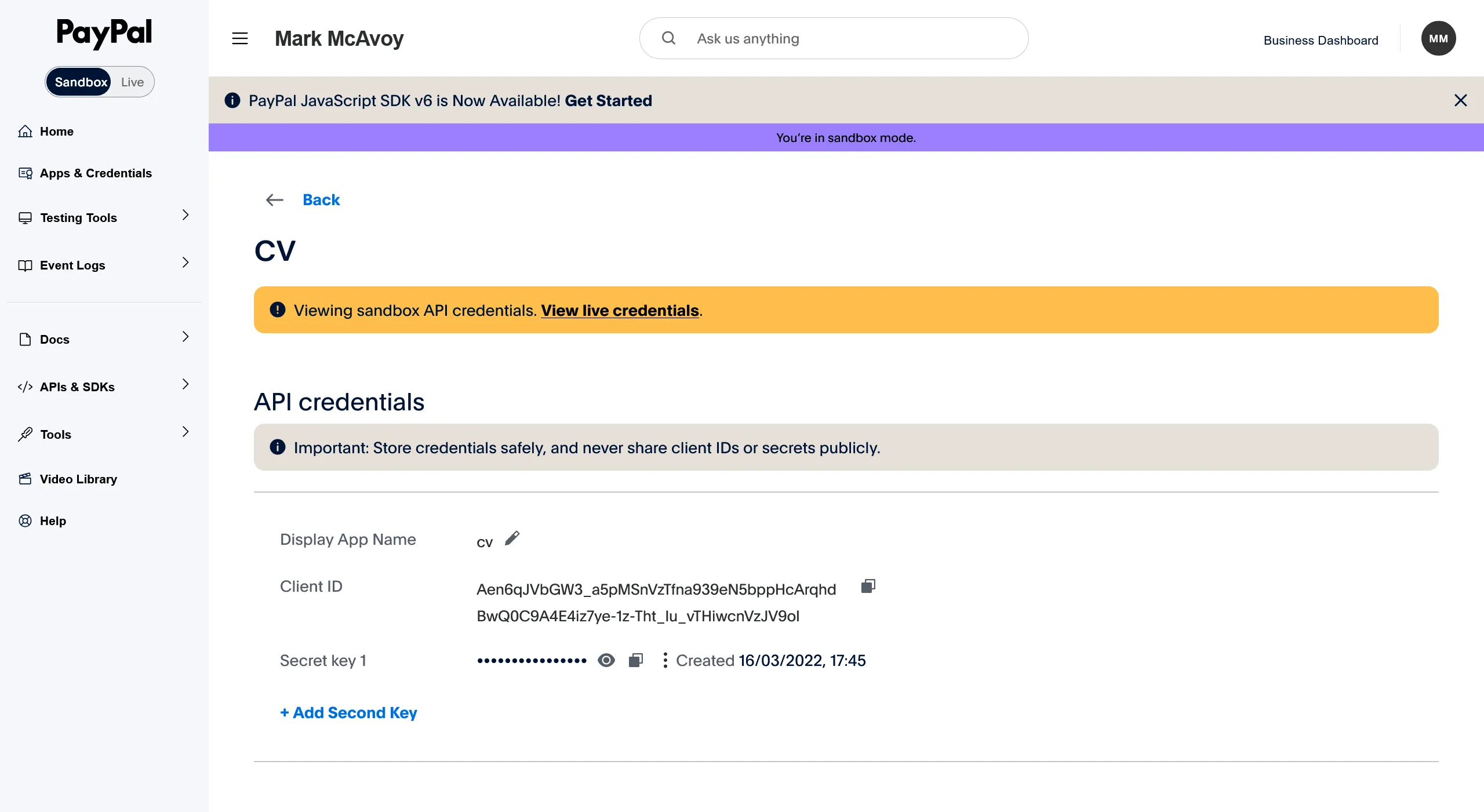
Sandbox and live apps have different credentials. You’ll repeat this step on the Live side when you’re ready to go live.
Step 3: Choose PayPal Checkout in Cart Viper
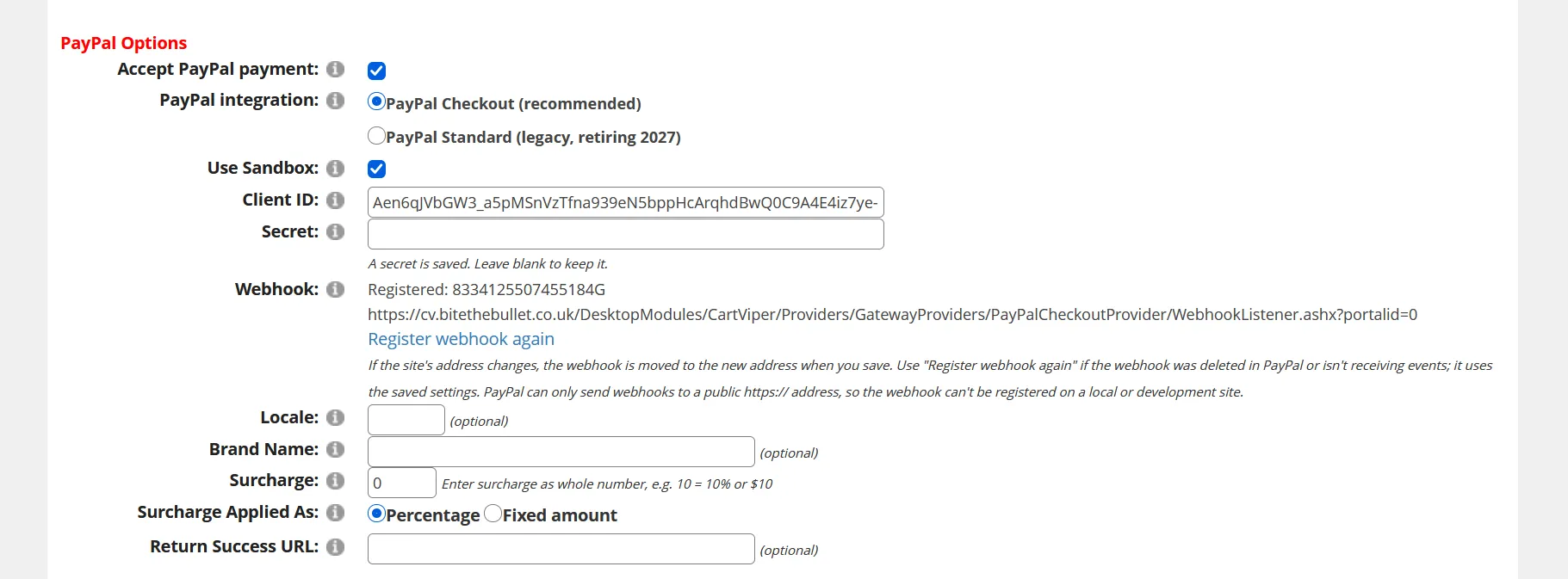
- In your store, go to Store Admin > Payment Gateways.
- Under PayPal Options, make sure Accept PayPal payment is ticked.
- Set PayPal integration to PayPal Checkout (recommended).

If your store is still on PayPal Standard, this page also shows a notice reminding you that PayPal Standard is being retired.
Step 4: Enter your credentials and save
- Tick Use Sandbox while you’re testing.
- Paste in the Client ID and Secret from step 2.
- Click Save.
Cart Viper checks the credentials with PayPal and registers the webhook for you. You should see a message like “Connected to PayPal (sandbox) and registered the webhook”, and the Webhook field shows the address PayPal will send events to.

A few things worth knowing:
- If PayPal rejects the credentials, check they’re from the same environment as the Use Sandbox setting. Sandbox credentials don’t work against live, and vice versa.
- PayPal only sends webhooks to a public
https://address. On a local or development copy of your site the webhook can’t be registered. Payments still work, but an order is only confirmed when the customer returns from PayPal. - The Secret is never shown again after saving. Leave the box blank to keep the saved one.
- If your site’s address changes, the webhook is moved to the new address the next time you save. If you ever need to, the Register webhook again link re-registers it from the saved settings.
Step 5: Review the optional settings
| Setting | What it does |
|---|---|
| Prefer Card Checkout | Asks PayPal to open its card payment page instead of the login page, so customers without a PayPal account can pay by card. Recommended. For this to work, PayPal account optional must be turned on under Website preferences in your PayPal account settings. PayPal makes the final decision and may still ask some customers to log in. |
| Send Customer Email | Prefills the customer’s email address on PayPal’s pages. Not recommended: if the email belongs to a PayPal account, PayPal shows its login page and hides the card option. |
| Locale | The language and country for PayPal’s pages, for example en-GB or fr-FR. Leave blank to let PayPal choose. |
| Brand Name | The name shown on PayPal’s pages. Defaults to your site name. |
| Surcharge / Surcharge Applied As | An optional charge for paying with PayPal, as a percentage or a fixed amount. |
| Return Success URL | An optional page to send customers to after paying. If blank, they see their order details. |
Step 6: Place a test order
PayPal creates test buyer accounts for you under Testing Tools > Sandbox Accounts on developer.paypal.com. Use one of these, or try the card option, to place an order in your store.
Check that:
- you’re returned to your store and the order shows as Paid,
- the confirmation emails arrive, once each,
- cancelling on PayPal takes you back to your cart without placing the order.
If you’d like to test the webhook, place another order and close the browser on PayPal’s page after approving the payment. The order should still be marked paid a few moments later.
Step 7: Go live
- Back on developer.paypal.com, switch to Live and create a live app (step 2).
- In Cart Viper, untick Use Sandbox, paste in the live Client ID and Secret, and save.
Cart Viper re-registers the webhook for the live app automatically when the Client ID or environment changes. Look for the “Connected to PayPal (live)” message, and you’re done.
Don’t remove your PayPal Standard settings or turn off IPN in your PayPal account just yet. PayPal can still send updates for orders placed before the switch, and Cart Viper needs those settings to handle them.
Questions
Do I have to switch right now? No, but please don’t leave it too late. PayPal can switch off PayPal Standard any time after 1 January 2027, and when it does, PayPal payments on stores still using it will stop working.
Can I switch back? Yes. Set PayPal integration back to PayPal Standard. Both providers keep their own settings.
Does it work with my checkout? Yes. PayPal Checkout works with the Four Step, Three Step and Single Page checkouts.
I have a custom checkout. Will it work? It will need a small change to the compiled custom checkout page. If you are using a custom checkout please contact us for help, mark@cartviper.com.
What about PayPal’s Smart Buttons, Pay Later and Venmo? This release redirects the customer to PayPal, just as PayPal Standard did, so it works with every checkout without changes to your pages. The in-page PayPal buttons aren’t part of this release.
If you get stuck, the Cart Viper user guide has been updated with a full PayPal Checkout section, and our support team is happy to help you make the move.